

Why Editing Consoles Matter for Wedding Photographers
When you’re editing tens of thousands of photos every year in Lightroom Classic, the right editing console for photographers becomes essential. I’ve tested multiple consoles over the years – Monogram, Loupedeck, Logitech, and Tourbox. Today we’re focusing on the two you can actually buy right now: the Logitech MX Creative Console and Tourbox Elite Plus.
Why skip Monogram and Loupedeck? Monogram sadly went out of business, leaving customers who pre-ordered hanging. Loupedeck got bought by Logitech and they just announced they’re ending support for legacy software. The Creative Console is essentially Loupedeck’s replacement.
So if you’re shopping for a physical editing console right now, your real choice is between Logitech and Tourbox. Let me break down both after months of real-world use.
Logitech MX Creative Console: Design and Setup
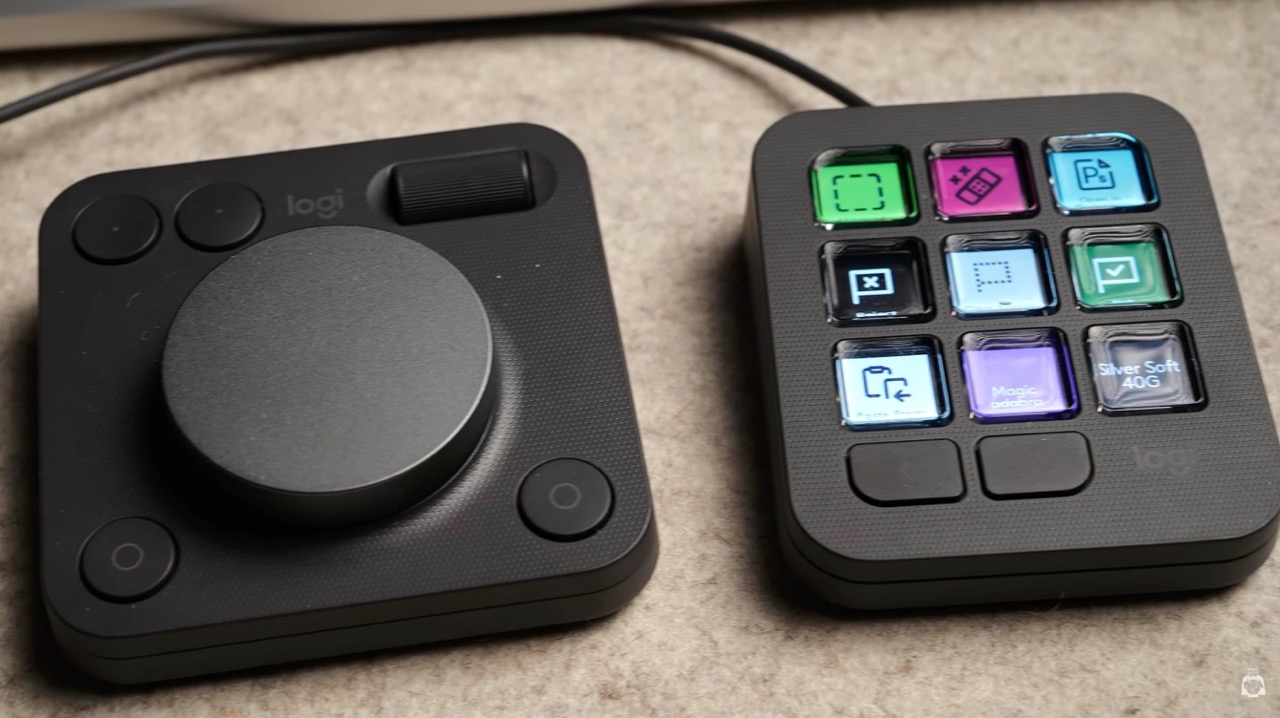
The Logitech MX Creative Console comes in two pieces:
- Keypad – Nine programmable buttons with screens (like a Stream Deck)
- Dial Pad – One large dial, one roller, four buttons
Both come in white or gray. I went gray to match my setup, but then got the white MX4 mouse, so now nothing matches.
First impressions? They’re extremely light. Made of plastic. They don’t feel premium, especially compared to the MX4 mouse which feels way more solid.
The keypad isn’t wireless – needs a USB-C cable. You can use it flat or on the included stand. It acts like a launcher, dynamically changing depending on which app you’re in. You set everything up via the Logi Options Plus app.
The dial pad is wireless, runs on two AAA batteries, connects to three devices via Bluetooth. Here’s my biggest gripe: no haptic feedback on the dial or roller. There’s no click, no resistance. You can’t do precise one-step adjustments. Even navigating through photos feels clunky – sometimes it jumps two images when you want one.
The MX4 mouse has amazing haptic feedback on its roller. They have the technology. They just didn’t put it in the console.
How I Actually Use the Logitech for Editing
There are multiple ways to set up the Logitech MX Creative Console for Lightroom editing, but only one felt truly efficient for me.
You could map sliders to buttons – click a button, then move the dial. But constantly switching between crop, brush, sliders? Too clunky.
The better workflow: Actions Ring.
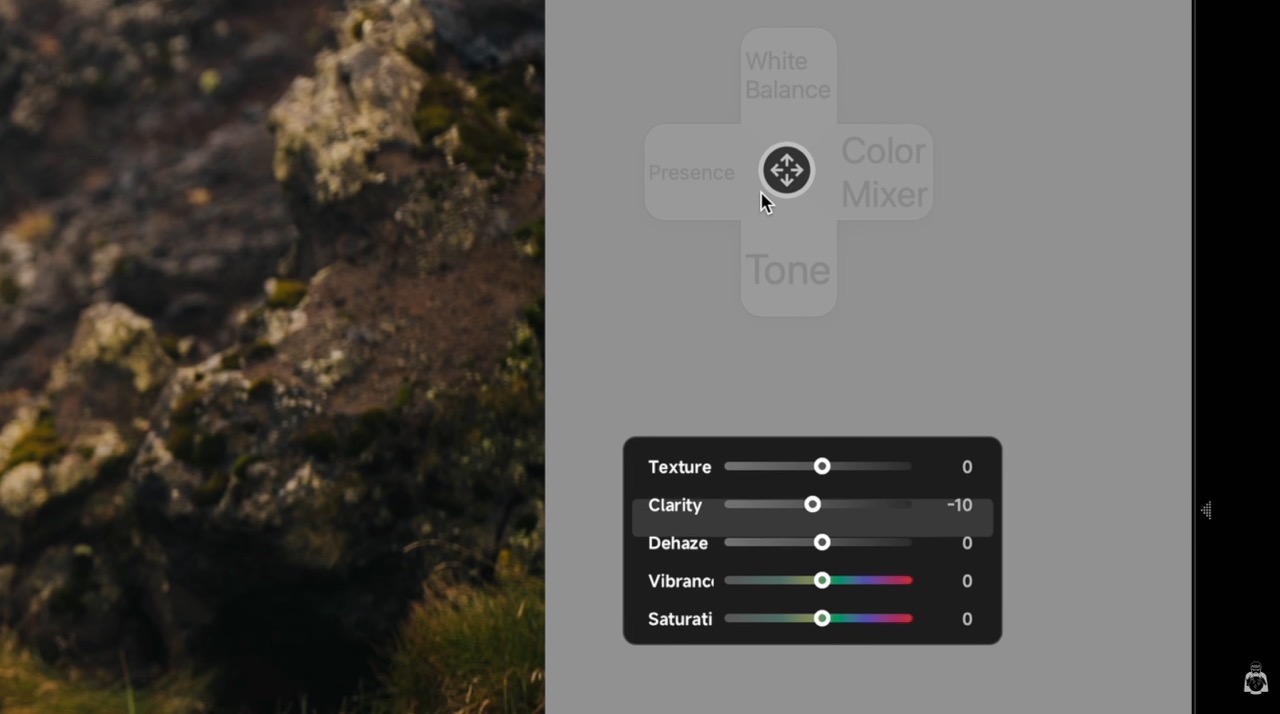
You map eight sliders to a circular menu that pops up on screen. Hover your mouse over exposure, temperature, contrast – whatever you need – then use the dial to adjust. With the MX4 mouse, you can feel the haptic feedback which helps.
I mapped masking tools, spot removal, presets, and “Open in Photoshop” to the keypad buttons. So my workflow looked like:
- Right hand on mouse
- Left hand on dial pad
- Move dial to adjust sliders via Actions Ring
- Hit keypad buttons for masking or presets
It worked. It was efficient. But the lack of haptic feedback on the dial always felt like a missing piece.
Tourbox Elite Plus: Built for Power Users
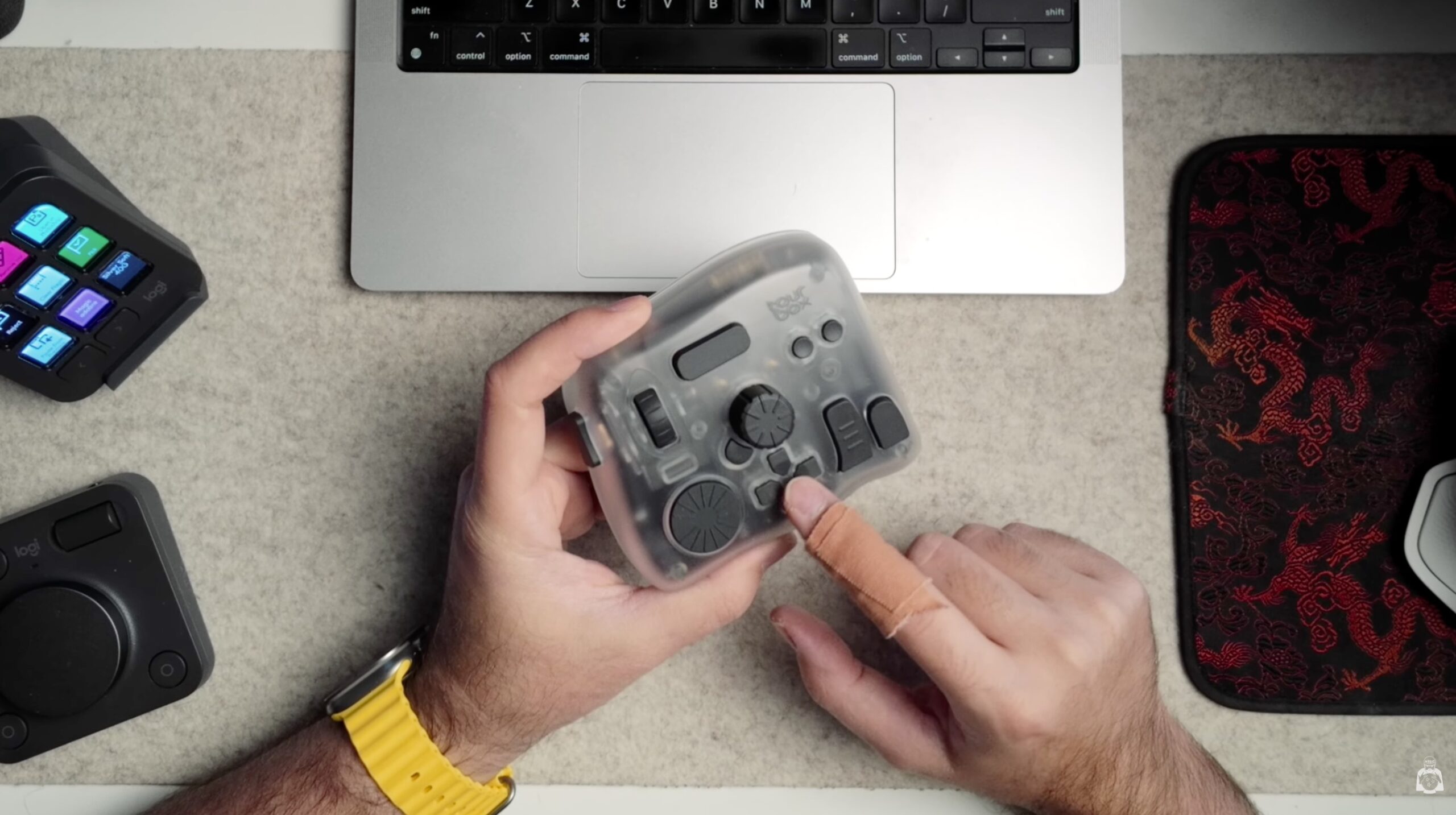
The Tourbox Elite Plus is a completely different beast. First thing you notice: it’s way heavier and sturdier than the Logitech. Feels premium.
Size-wise, it’s slightly bigger than just the Logitech dial pad alone, but smaller than both Logitech pieces combined. It has this funky gaming-controller shape. I got the translucent version, but they have some bold colors I honestly wish I’d grabbed.
What’s inside:
- Two main dials (both with haptic feedback)
- One roller (also with haptic feedback)
- D-pad
- Seven weirdly shaped buttons
It’s wireless, runs on two AA batteries. The Elite Plus can connect to iPad (though I don’t use that). If you don’t need iPad support, get the regular Elite – same device, lower price.
Tourbox is designed as a one-handed device. Keep one hand on it, the other on your mouse. The weird button shapes aren’t random – they help you build muscle memory so you’re not looking down constantly.
And those haptic dials? You can feel every adjustment. You can hear the clicks. Makes precision editing so much easier.
Tourbox Workflow: Dynamic Panels Change Everything
Tourbox has nearly endless customization. You can map combos – press a button while holding another, double-click, actions on release, repeating actions while holding. It’s wild.
For Lightroom Classic, the game-changer is Dynamic Panels.
You create floating panels on screen. Hover your mouse over a slider, or use the roller to scroll through parameters, then adjust with the dial. Similar concept to Logitech’s Actions Ring, but way more powerful:
- You can have multiple custom panels (not limited to eight options)
- They display vertically, not in a circle
- They work in full-screen editing mode (Logitech’s don’t)
I mapped buttons like this:
- One button: pop-up dynamic panel
- Another: reset
- Another: crop tool
- Hold one: spot removal
Full-screen editing works for everything except cropping and masking – that’s a Lightroom limitation, not Tourbox.
After a few months, I feel like I’ve only scratched the surface. My buddy Taylor uses Tourbox in a completely different way than I do. That customization depth just doesn’t exist with Logitech – there’s basically one efficient way to use it (Actions Ring).
Software Reliability: Big Company vs Focused Product
Logitech is massive. They make mice, keyboards, webcams, headsets – everything. The software you rely on, Logi Options Plus, controls all their devices. And honestly? A lot of people hate it.
I’ve had issues:
- Actions Ring shows up but sliders don’t respond (had to restart Lightroom)
- Friends couldn’t map presets to buttons on PC
- One friend went through multiple support rounds with no solution
- Options Plus completely stopped working for a few days
When that happened, I lost access to shortcuts for my mouse and keyboard too. Painful.
Tourbox? They only make Tourbox. Their entire focus is on making one product excellent. The software feels more complete. Updates are targeted. It’s built specifically for professional editors and creators.
That focus matters when you’re relying on something daily for client work.
Who Each Console Is Actually For
Here’s how I see it:
Logitech MX Creative Console feels consumer-oriented. Even though it’s their “top creative” series, it doesn’t feel pro-level. The MX4 mouse is on another level with haptics and build quality. The console falls short by comparison.
The keypad is basically a Stream Deck. It appeals more to gaming and tech enthusiasts than serious creative professionals.
Tourbox feels made for power users. If you’re serious about editing photos, videos, graphic design – and workflow efficiency actually matters – this is it. You can set it up however you want. Mountains of customization.
Both have learning curves. If you’ve never used an editing console for photographers before, expect to invest time learning either one.
But if you ask me which I’d buy and actually use going forward? Tourbox. It’s just more suited for professional wedding photographer workflow needs.
Final Thoughts on Choosing Your Editing Console
After months testing both editing consoles for photographers in real wedding photography workflows, Tourbox wins for me. The haptic feedback, customization depth, and focused software make it the better tool for serious editing work.
Logitech MX Creative Console isn’t bad – it works, and Actions Ring is efficient. But it feels like a product split between too many audiences.
If you’re editing thousands of wedding photos every year and workflow efficiency directly impacts your business, invest in Tourbox. If you want to learn more about my complete editing workflow beyond just the hardware, watch the full video above where I break down my entire Lightroom process.
Additional Links and Resources
✨ Magicadabra Presets Bundle
Presets + Editing Masterclass
I edit all of my photos using my signature Magicadabra Presets — grab the full bundle with the editing masterclass
Get It Now — $79

🔗 TourBox
🔗 Logitech MX Creative Console